To make a slideshow of one person or a few people on iPhone, open their page or group under People & Pets in the Photos app, or, on iOS 27 or later, tap Make a slideshow of someone in Fliptastic, select their faces and let AI choose their best photos. Both run on your device and both are free.
A slideshow of one person or a few, such as a child’s year, a couple on an anniversary or a group of friends on a birthday, is one of the most common videos people make. I build Fliptastic, a slideshow app for iPhone and iPad, and added this feature in version 3.4.0 because picking those photos by hand from thousands is the slow part.
Method 1: People & Pets in Apple Photos (free, built in)
The Photos app already groups photos by the faces in them. According to Apple’s guide to People & Pets:
- Open Photos, tap Collections, swipe up and tap People & Pets.
- Tap the person. If you have named them, you can also search for their name.
- Depending on how many photos you have of them, you can watch a Memory movie of them, then share it or save it as a video.
On iPhones that support Apple Intelligence, you can also describe the memory you want, such as “Mia at the beach”, and Photos picks the photos. You have less say over which photos, the order and the shape of the video, and Memories are built for watching on your phone rather than in a 9:16 frame for Reels or TikTok.
Method 2: Make a slideshow of someone in Fliptastic
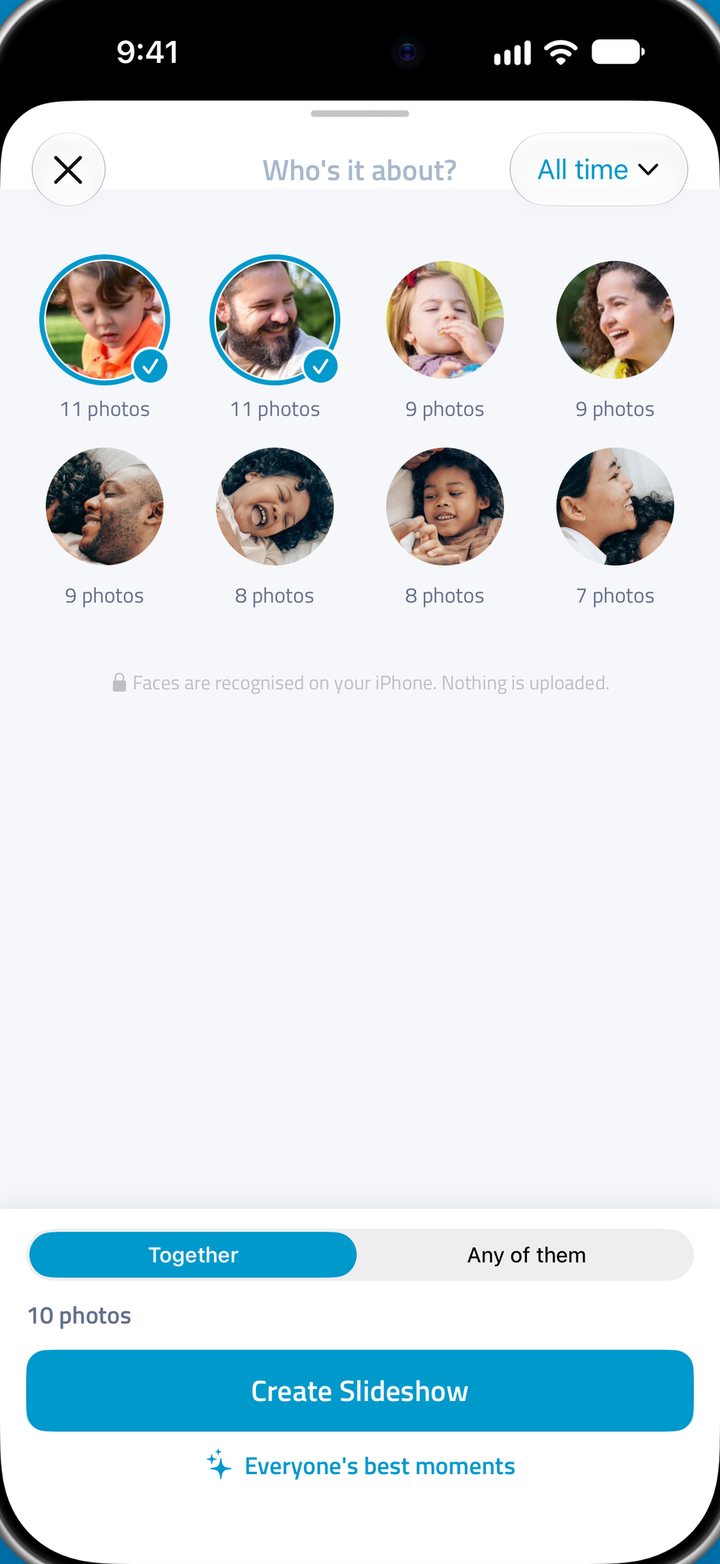
- Tap Make a slideshow of someone. Open Fliptastic on an iPhone or iPad with iOS 27 or later and tap Make a slideshow of someone on the home screen. Allow access to all your photos if Fliptastic asks.
- Pick the person. Under Who’s it about?, tap their face. Fliptastic lists everyone who is in at least three of your photos, most photographed first, and keeps finding people in the background.
- Add more people if you like. Tap more faces, then choose Together for photos where they appear together, or Any of them for photos of either. The photo count under the faces updates as you choose.
- Choose the time range. Tap All time at the top and pick Last 3 months, Last 12 months, This year or your own dates.
- Create the slideshow. Tap Create Slideshow. AI picks 15 of their best photos, skips near-duplicates, spreads them across the time range, puts them in date order and adds a theme song.
- Adjust and export. Add, remove or reorder photos, change the music, transitions and length on the Make Video screen, then tap Share to save or post the video.
Faces are recognised on your device and nothing is uploaded. To keep someone out of the list, touch and hold their face and tap Hide.
How to make a slideshow of a few people
To make a slideshow of a few people in Fliptastic, tap each of their faces under Who’s it about?, then choose Together to use only photos where they all appear, or Any of them to use photos of any of them. Pick a time range and tap Create Slideshow, and AI picks 15 of their best photos.
Apple Photos can show you the same people together. According to Apple’s guide to group photos, Photos sorts people who often appear together, such as your family, into Groups at the top of People & Pets, and you can tap Add next to Groups to make your own from any combination of people. Opening a group shows all the photos and videos of them together, which you can share; Apple does not describe playing a Memory movie of a group.
Which method should you use?
| You want to… | Use |
|---|---|
| Watch a quick movie of someone on your phone | Apple Photos |
| Include their video clips and Live Photos | Apple Photos |
| Browse photos of a few people together | Apple Photos, with a group |
| A finished video of a few people together | Fliptastic, with Together |
| One video of several people, together or apart | Fliptastic, with Any of them |
| Just this year, or between two dates | Fliptastic |
| A 9:16 video for Reels or TikTok | Fliptastic |
| No watermark at no cost | Apple Photos |
Ideas for a slideshow of someone
- A child’s year: pick them, choose This year, and use it for a birthday or as an end-of-year video for family.
- An anniversary: pick both of you with Together and All time, from your first photo together to now.
- A birthday tribute for a friend: pick them with Any of them alongside the friends they are usually with.
- A memorial video: choose All time, then give each photo longer on screen; see how long each photo should be in a slideshow.
To swap the theme song for one of your own, read how to add music to a slideshow on iPhone. For a slideshow from any photos, see how to make a slideshow on iPhone.
Common questions
Can I make a slideshow of just one person on iPhone?
Yes. In Apple Photos, open Collections, then People & Pets, and choose the person; depending on how many photos you have of them, you can watch a Memory movie of them. In Fliptastic on iOS 27 or later, tap Make a slideshow of someone, tap their face and tap Create Slideshow, and AI picks their best photos for you.
Can I make a slideshow of a few people together?
Yes. In Fliptastic, tap each of their faces and choose Together to use only photos where they all appear, or Any of them to use photos of any of them. This works for a couple, siblings, your family or a group of friends. In Apple Photos, open or create a group under People & Pets to see the photos of them together.
Are my photos or faces uploaded?
No. Fliptastic recognises faces on your iPhone or iPad with Apple’s on-device face recognition and never uploads your photos or faces. The people data stays on your device, is left out of backups, and can be deleted in Fliptastic’s Settings under People.
Why can’t I find someone in the list?
Fliptastic lists people once they appear in at least three of your photos, and the first search through a large library can take a few minutes, so check again shortly. Fliptastic also needs access to all your photos rather than a selection. If you hid someone, Hidden People in Settings brings them back.
Is it free?
Yes. Slideshows of someone are free for everyone, with the same watermark as any free export. Fliptastic Premium removes the watermark and unlocks every transition, effect and theme song.